
After receiving an invitation to Shopify Payments for China, a merchant completes work across Shopify and WorldFirst. The process includes business verification, connecting the account and activating the service. The remaining checks cover whether customers can pay, how orders move through the business, and how payouts reconcile.
This guide follows official documentation checked on October 15, 2026. It applies to invited mainland Chinese merchants that meet the China offering’s cross-border business requirements. Available screens and fields depend on the current account. China overview
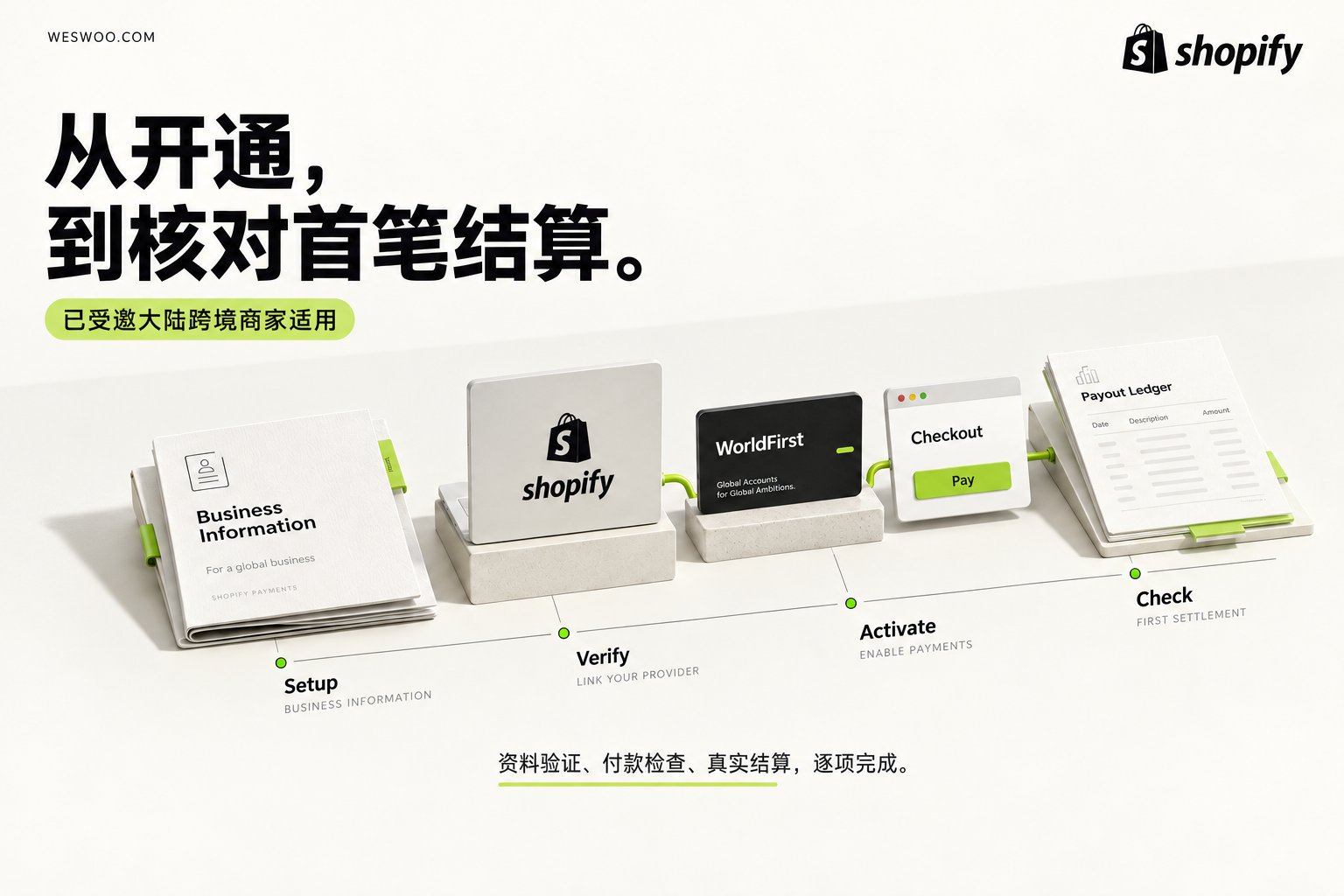
Assign an owner and prepare matching business information
The store owner or organization owner must complete setup. Development and operations teams can help prepare and check the work, while an authorized owner handles account verification and agreements. Shopify Payments also requires two-step authentication. Setup permissions, Account security and testing
Start by checking that the business information in Shopify corresponds to the WorldFirst account being connected. Submit the documents WorldFirst actually requests. Requirements can vary with the business, its representative, beneficial owners, directors and activities; a generic document list from another merchant is not a substitute. Business verification requirements
Check that documents are complete, clear and valid, and that details such as names and addresses match the information submitted. Assign an owner to each outstanding document and record which system requires it. Otherwise, a Shopify waiting status and an unresolved WorldFirst request can leave the team assuming that both systems are simply reviewing the account.
Keep a record of the current payment arrangement before changing it: existing methods, unresolved payment issues, pending refunds and the reconciliation contact. This is a handover record. Activating another service does not establish that the old provider’s open items have been resolved.
Enter payment settings and identify the correct setup path
Open Settings → Payments in the Shopify admin.
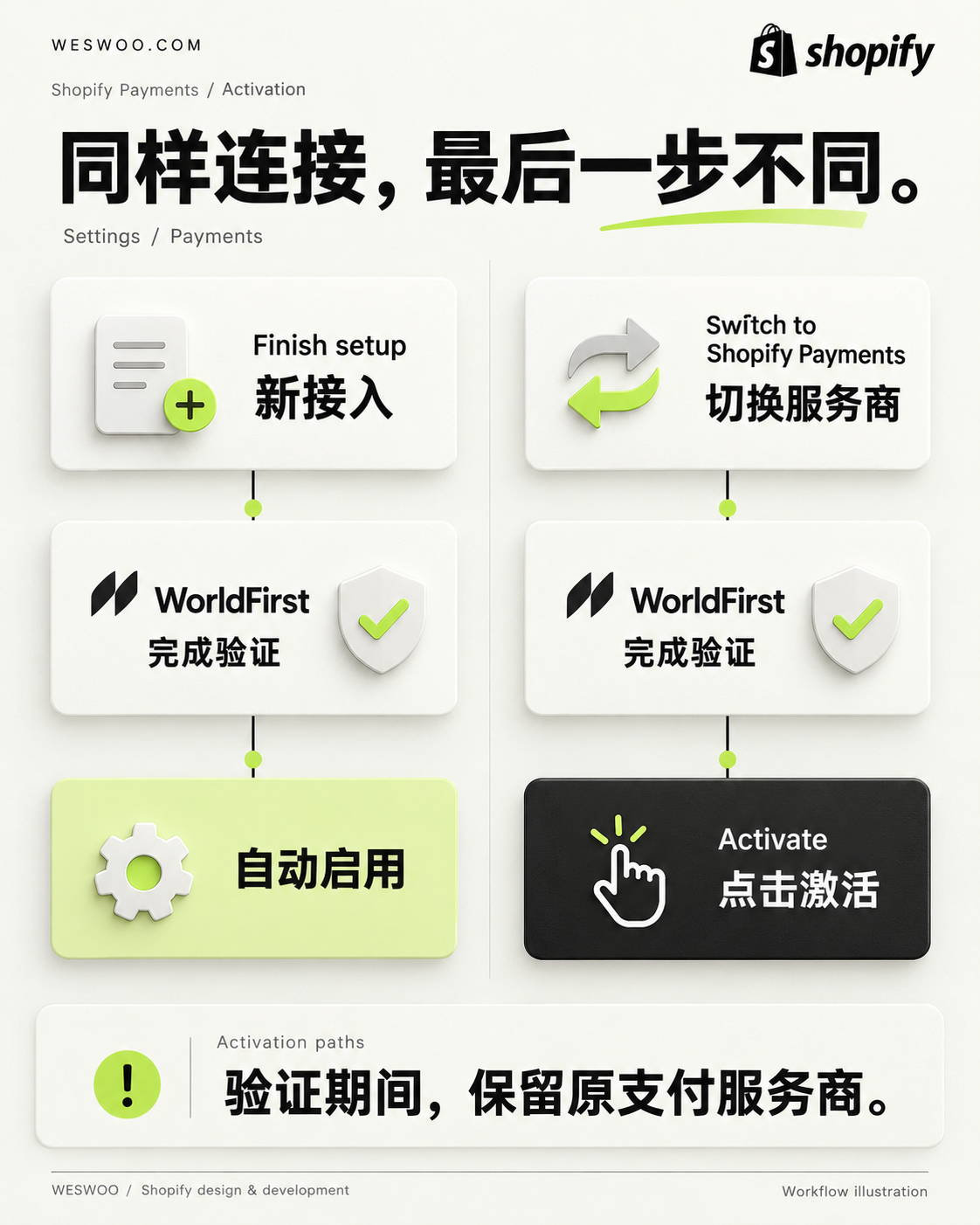
For a store setting up Shopify Payments, choose Finish setup in the Shopify Payments section. For a store moving from a third-party provider, choose Switch to Shopify Payments. Shopify allows the current provider to remain active during WorldFirst verification so checkout can continue working. There is no need to disable it just to begin verification. New setup and provider-switch instructions
If the expected entry is absent, check the invitation status and the account being used, then contact Shopify support. Changing the store country, borrowing another entity or repeatedly changing business details is not a valid way to obtain access.
In Business details, confirm the trading name and choose the business category. Continue to Connect WorldFirst, read the current connection information, terms and applicable fees, and proceed to WorldFirst. Link an existing account or create one, review the Shopify connection and accept the required agreements. Official connection flow
An internal work record can identify who performs the action, which business account is being connected, which fees need confirmation and what information remains outstanding. Keep passwords, verification codes and complete identity documents out of shared tickets.
Return to Shopify and verify activation separately
After connecting WorldFirst, check for outstanding verification or information requests. The official process has two distinct endings:
- New setup: Shopify Payments turns on automatically after verification is complete.
- Switching from a third-party provider: after returning to Shopify and completing verification, select Activate.
These are different activation steps, so use the branch that matches the store’s starting point. Activation instructions
Record the actual state and any open items. A WorldFirst-connected status alone does not close the setup task. If verification is pending, identify which party needs to act. Once the service is active, proceed to customer-payment and operational checks.
For a store receiving traffic, schedule the production transition when the account owner, operations and development team can respond to problems. A clear contact for each area helps distinguish customer eligibility, account status and storefront interaction issues without several people changing settings at once.
Check customer payment and order handling
The China offering currently lists Visa, Mastercard, Shop Pay, Apple Pay and Google Pay. What appears depends on account configuration and customer circumstances, including location and device. Choose checks that reflect the store’s target markets and record which methods appear in each scenario; do not expect identical wallet buttons on every device. Method availability and display conditions
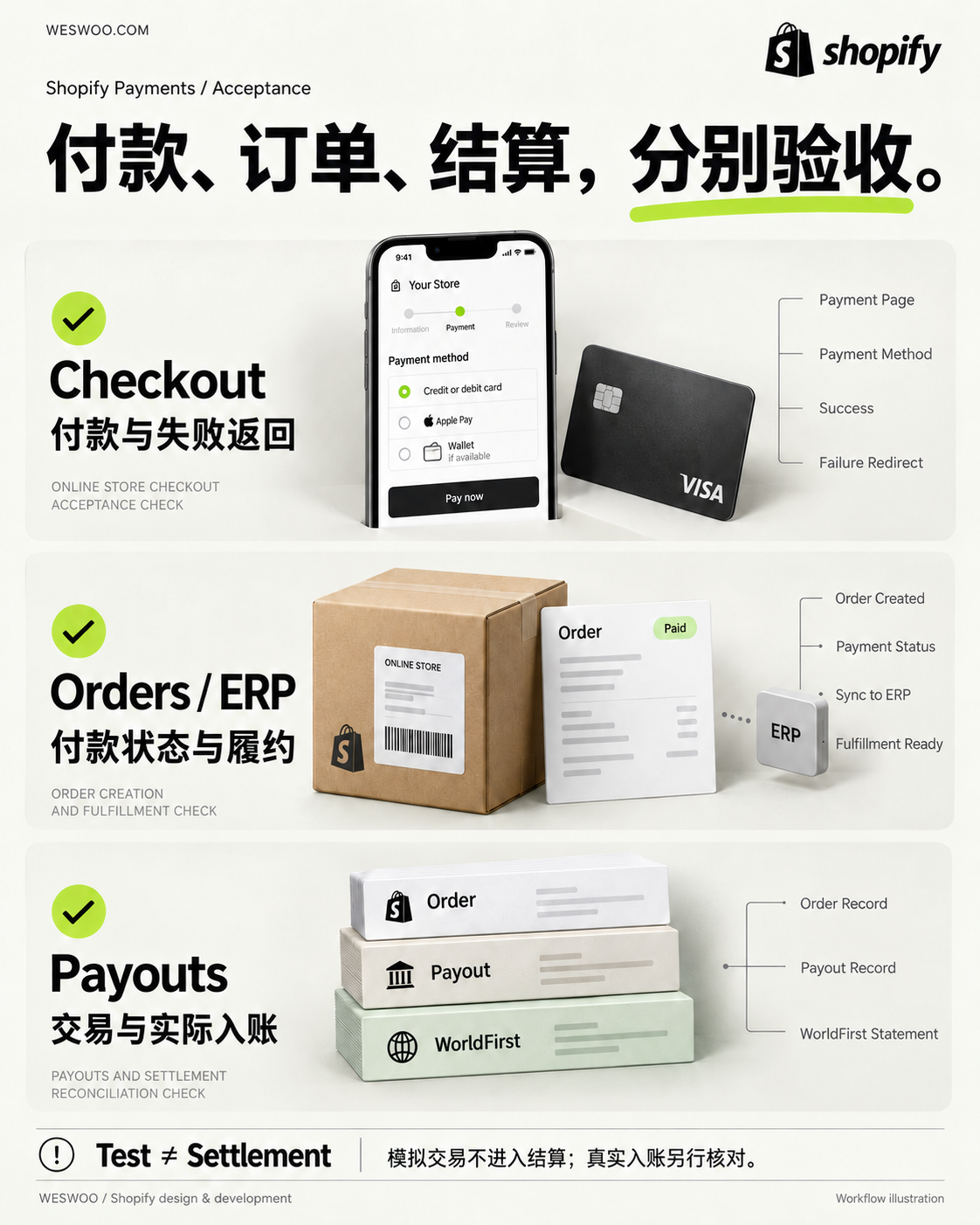
Follow the customer journey through the product page, cart and checkout. Check that amounts and currencies remain understandable, payment entry points are clear, customers can retry or return after a failure, and the confirmation email and order-status page make sense. Include custom purchase flows and their return paths.
If the account provides test mode, follow the official instructions in a suitable non-production context and check both successful and failed scenarios. Do not enable test mode on a production store taking real orders. Test mode does not capture real payments, even if some accelerated checkouts appear to complete. Do not fulfill test orders, and disable test mode after testing. Shopify Payments testing guidance
The development review should also cover the connection to business systems. Where ERP, warehouse or automated fulfillment systems are connected, inspect what happens to unpaid, failed, test and normally paid orders. Retain a reviewable scenario record with actual observations and unresolved issues. A single successful-checkout screenshot cannot establish that all these paths work.
Complete finance acceptance with an actual payout
Simulated test-mode transactions do not appear in payouts or reports. A successful test therefore needs a separate reconciliation check after real business transactions occur. Scope of simulated transactions
The China documentation gives the path Settings → Payments → View payouts. Some newer admin experiences also expose Payouts under Finance. Open a specific payout and inspect the associated transactions, fees, refunds and adjustments. Export its transaction details when needed for reconciliation. China payout view, Payout details and exports
For the same payout, retain three records: the order’s transaction information, Shopify’s payout details, and the actual WorldFirst credit. Match references, amounts, currencies and dates. If they differ, first establish that the records belong to the same payout, then inspect the fees, refunds and adjustment items. Comparing an entire day’s order revenue with one credited payout can create an apparent shortfall simply by mixing different groups of transactions.
Payout-account details are read-only in Shopify; changes are handled in WorldFirst. Confirm the account’s supported payout currencies and funds-availability conditions. The official minimum settlement time of four business days is not a fixed arrival date. Account and settlement rules
Once the first reconciliation is complete, hand the method to the people responsible for routine finance work. One matched payout validates that configuration and reconciliation exercise; ongoing exceptions, refunds and disputes still need monitoring.
Bring evidence for the stage that is blocked
For a missing entry or a Shopify setup issue, contact Shopify support with the store’s myshopify.com domain, current state and error information. For identity verification, documents or the receiving account, contact WorldFirst. Address a clearly displayed document request before assuming the account needs an escalation. Setup troubleshooting, WorldFirst verification support
If the service is active but a wallet is missing, include the customer’s market, device, browser and the relevant screen so that its display conditions can be checked. If an order is paid but funds have not arrived, provide the specific transaction and payout references. Distinguish pending settlement from later processing instead of reporting only that money is missing.
For WESWOO’s Shopify design and development handover, this creates a concrete division of work: the account owner confirms verification and activation; operations checks the customer payment experience; development checks custom flows and order-system behavior; finance confirms the reconciliation method. Retain an owner and next action for every unfinished item. That record shows what is ready for operation more clearly than a payment-enabled status alone.
Materials for the companion carousel video
The 38-second companion carousel, the 38-second companion setup carousel video, uses Dream Culture — Kevin MacLeod (incompetech.com), licensed under CC BY 4.0. Original music source. The music was excerpted, volume adjusted and faded. The companion video uses the Chinese teaching illustrations from this article.