
Shopify apps tend to get installed one problem at a time. Customers cannot find the right model, so you add search and filters. You want more buyer feedback, so you install a review app. Then you connect an email platform to keep in touch with existing customers. When you finally review the costs, every app seems useful, but some features barely get opened in a typical month.
Now that Sidekick can help with admin tasks and generate small internal apps, a reasonable question follows: could you stop paying for some of those tools?
Sometimes, yes. But compare individual functions. For basic product filters, small product data updates and internal checklists, it is worth evaluating AI alongside Shopify’s built-in features. Collecting and displaying genuine reviews, or running an ongoing email program, involves more than generating a summary or drafting a workflow.
Searchanise, Matrixify, Judge.me and Klaviyo provide useful examples. These established apps have substantial merchant feedback, and each helps show which tasks can be handled differently, where AI can help and which capabilities still need a working system behind them. The technology stores and test arrangements below are hypothetical teaching examples. Product specifications must come from the documentation for each actual model.
Start with the part of the job you want AI to handle
If you ask AI to write two emails, it has produced content. If it also helps arrange the triggers and message sequence, it has done more work. You still need a system that actually manages the audience, processes events and sends the messages.
The same distinction applies to apps generated by Sidekick. Employees can use them to view and work with their own store’s data inside the Shopify admin. They do not directly become a customer-facing review widget, a storefront search service or a checkout extension. App generation currently requires a Grow, Advanced or Shopify Plus plan, a desktop web browser and the relevant app development permission. Shopify’s app generation documentation
That scope applies to the generated admin apps discussed here. Sidekick has other capabilities and can work with third-party apps that have added support for it. The particular app must support the connection, and access requires approval. Do not assume Sidekick can read or operate every app already installed in a store. Using apps with Sidekick
Ask a specific question before comparing tools: are you trying to save time preparing information, replace a storefront function or replace an entire service that runs continuously?
Searchanise: try the native option when basic filters are enough
Suppose you sell security cameras. A customer already knows they want wired networking, PoE power and local storage, yet has to open product page after product page to find a suitable model. The immediate job is to let them narrow the catalog using clear product requirements.
If these attribute filters are the main reason you pay for a search app, try the free Shopify Search & Discovery app first. This may offer a way to reduce app spending. The native app and a compatible theme provide the storefront filters; AI can help organize the fields and check the information that goes into them. Shopify Search & Discovery
Start with a few products whose specifications you have already checked:

- Separate the product requirements. Go to Settings → Metafields and metaobjects → Products and create product metafields: dedicated fields for product attributes. Use an appropriate standard definition when one is available. For custom definitions, keep Network, Power and Storage separate. Network and power can use single-line text; a text list can suit models supporting several storage methods. Avoid putting every detail into one paragraph of product copy.
- Enter verified values for each model. Network can record connections such as Wi-Fi or Ethernet, while Power records methods such as USB or PoE. Wi-Fi and PoE are not inherently mutually exclusive choices. Check the model’s own specifications to see which combinations it supports. AI can help standardize names, but it should not fill missing specifications by guessing from similar products.
- Connect the fields to filters. Open Apps → Search & Discovery → Filters → Add filter. Choose the appropriate metafield in Source, give it a customer-friendly display name and save. The theme must support filters and display them in the relevant collection or search template. Saving a filter in the admin does not make it appear in an incompatible theme. Creating metafield definitions, configuring native filters
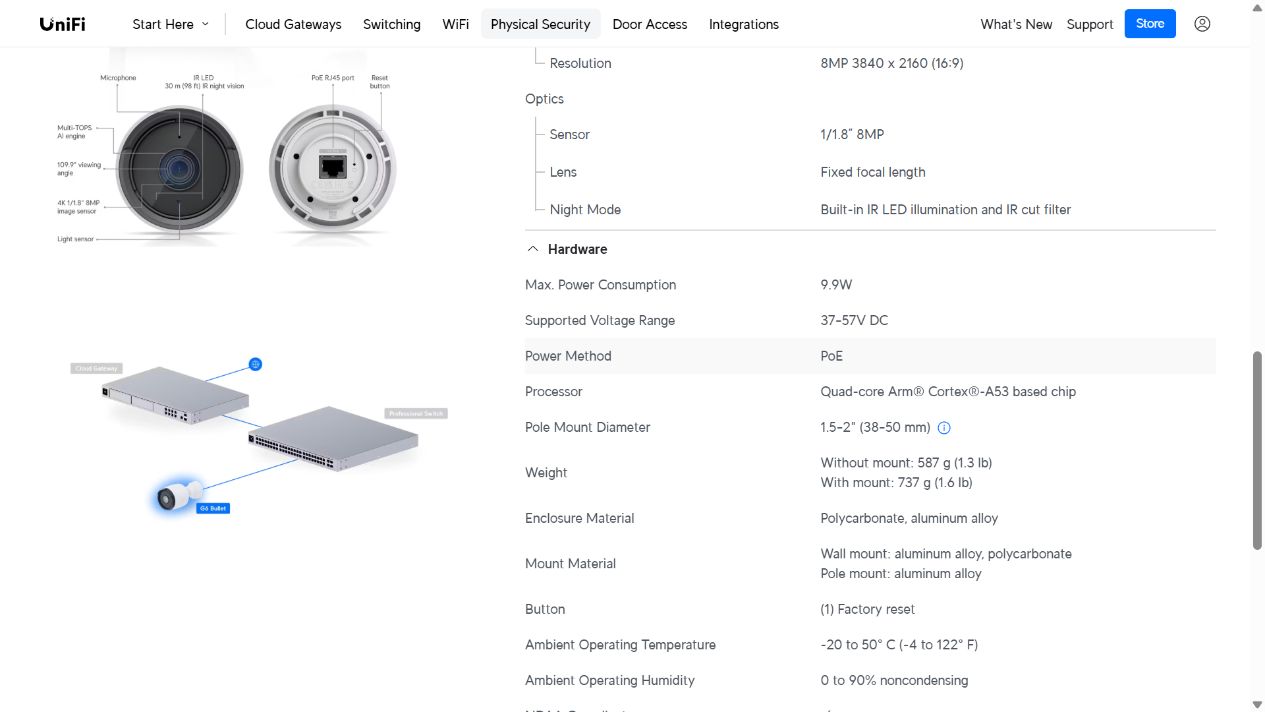
A real manufacturer’s specification page can help show how to separate the data. Ubiquiti lists the G6 Bullet’s power method, supported voltage range and maximum power consumption separately. Preserve those distinctions when preparing product information. The word “PoE” alone does not mean every electrical specification has been recorded. Ubiquiti’s official specifications
Then run a small storefront test that can reveal a real error. Select Ethernet alone and check the models shown. Select PoE alone and check again. Finally, select both and confirm that every remaining model meets both requirements. Clear the filters and make sure the products return normally. Different filters form an intersection, so seeing the filter controls appear is only the beginning of the check.
There are also suitability limits. For example, Shopify’s current documentation says collections containing more than 5,000 products do not display filters. If the catalog size, theme or way you use the store falls outside the requirements, evaluate another approach. A free app is not automatically suitable for every store. Filter requirements and limitations
When might Searchanise still be worth keeping? If you rely on personalized search ranking, search merchandising rules, or reports on queries and searches with no results, compare those capabilities separately. Searchanise itself uses AI. An internal tool for employees does not directly take over the search service that customers use. Searchanise’s app features, search analytics documentation
For this category, native features may cover basic filtering; more advanced search needs a comparison of the functions the store actually uses. Check the same products and common search terms before deciding whether to retire the existing app.
Matrixify: AI can organize a spreadsheet, but what are you importing?
If you only update a batch of product descriptions occasionally, “bulk editing” does not automatically mean you need another paid app. Shopify can import and export product CSV files. AI can help organize the information, identify omissions or propose edits.
That is a narrower task than using Matrixify to migrate orders, customers and metaobjects, or repeatedly process several kinds of store data. Matrixify covers multiple data entities, bulk updates and scheduled jobs, well beyond product copy. Matrixify’s app features
Consider a store selling USB-C docking stations that needs to organize supplier power specifications. A document may distinguish the power input, power delivered to a computer and whether an adapter is included. Those are different facts. AI should not turn an unexplained “100W” into “delivers 100W charging to your computer” throughout the catalog. Ask the supplier to clarify anything the documentation does not establish.
For a small product update with a clear scope, try this process:
- Select a small group in Products, export the original CSV and keep an untouched copy. Prepare the supplier documentation for the corresponding models. Start with one field, such as the product description, rather than changing prices, inventory and variant structure at the same time.
- Ask AI for a proposed changes table first. It should show the product identifier, original content, proposed content and the supporting source. Review the differences before preparing a file in Shopify’s current import format. Make the instructions explicit: preserve model names and existing identifiers; mark specifications absent from the source for confirmation; add no compatibility or performance promises.
- Once the fields are mapped to the correct products, use Products → Import for a small import. When updating existing products, check the option for overwriting products with matching URL handles. Afterwards, inspect the products in the admin and storefront. Confirm that each change reached the correct product and that the existing images, options and other information remain intact. Product CSV documentation, product import instructions
A common mistake is to treat a blank cell as “leave unchanged.” During a Shopify product CSV import with overwriting enabled, including an optional column with an empty value can clear the existing value. Leaving the column out is different from supplying a blank cell. Variant fields also have dependencies, so removing columns to simplify the file can create other problems.
AI can help clean the data; writing the result back to the store must follow the import tool’s format and update rules. Keeping those stages separate helps you identify whether an error came from the source information, the conversion or the write operation.
If the store already depends on Matrixify, you can also evaluate its own AI integration. Matrixify provides an MCP interface through which compatible AI assistants can create and monitor import and export jobs. It also supports a dry run that validates and converts a file without writing to Shopify. Here, AI uses Matrixify to execute the task. That does not mean AI has replaced Matrixify, or that the Sidekick in your store is already connected to it. Matrixify’s MCP documentation
For a simple, one-off product update, native CSV tools plus AI-assisted preparation may be enough. For migrations involving multiple data types, recurring jobs or complex updates, compare the tool’s coverage, failure reports and recovery options. A successful small sample does not establish that a whole-store migration has been validated.
Judge.me: AI can help you read reviews, while real feedback still needs collecting
It is easy to mistake a review app for a few positive comments on a product page. The actual work also includes inviting feedback at an appropriate time, retaining the original reviews, managing their display and showing shoppers experiences linked to the correct product.
Judge.me provides this kind of functionality. Generating a sentence such as “customers generally like this camera” does not replace it. The first question is whether genuine reviews support that sentence. Judge.me’s features and getting started guide
If your goal is to help shoppers understand a large number of reviews faster, first check the AI features already available in the app. That may be simpler than developing a separate summary system. Judge.me offers product review summaries in the new version of its Review Widget on the Awesome plan. A product needs at least five published reviews containing body text to qualify for generation.
With the appropriate plan and widget in place, go to Judge.me → Settings → Widgets → Review Widget → Widget header → AI review insights, select Show product review summary and save. Summaries follow the app’s update schedule; enabling the setting or receiving another review does not guarantee an immediate refresh. Review summary requirements and settings
There are two useful checks after enabling it:
- Check whether the summary changes the meaning of the feedback. Suppose a buyer reports difficulty connecting a particular camera model to their network. Check whether the summary turns a problem with a particular setup or model into a general defect across the product. Also check whether positive descriptions obscure important negative feedback. A conclusion should be traceable to the original reviews, rather than fixed by adding a few more flattering sentences.
- Check the review process itself. Review the invitation timing in Settings → Request Scheduling, then inspect the product page’s review widget. A visible summary does not establish that invitations, original review display and product associations are all correct.
You can also give AI genuine reviews that you are entitled to use, with personal information removed, to produce an internal issue list. For example, separate network setup, installation, storage and instruction manual problems, retaining the original review reference and wording so the product team can investigate. This is a useful analysis task. Its output should not be presented as purchase reviews written by customers.
Use AI to reduce the work of reading and grouping feedback while retaining the ability to collect and display genuine reviews. You can move to a different review system, but that requires transferring and checking the original reviews, product associations and storefront widget. A generated summary is not a substitute for that handover.
Klaviyo: AI can draft the flow, but does the flow run correctly?
Good email copy is one part of the job. An email about a portable power station may need to be different for someone who just bought the main unit, someone who bought only an accessory and someone who has returned their purchase.
Replacing an email marketing system therefore involves the audience, order events, sending conditions, unsubscribe handling and operating records, as well as the two emails AI can write.
Klaviyo already applies AI to more of this process. Its Composer can draft a flow structure and messages from a description, rather than only suggesting subject lines. The output still needs review and editing. Creating a flow draft does not set it live. Klaviyo’s Composer tutorial
Give it a specific task to try, rather than simply asking it to “increase repeat purchases”:
Draft two educational emails for customers who have consented to marketing emails and purchased a specified power station model. Base the first on verified usage instructions and the support page, and use the second to answer common questions. Customers who bought only accessories should not enter the main-unit flow. Do not invent compatible batteries, power ratings or charging promises. Create a draft first, and list the data and settings I need to provide.
Click Open Composer in Klaviyo and describe the goal. Then examine the proposed flow. Which actual event triggers it? Does the event data identify the power station model? When does the delay start? Have the filter conditions been implemented? Those details matter more than the presence of a few boxes in a flow diagram. This example is not a ready-made template; configure it using the events and fields actually synchronized for the store.
Once the approach makes sense, click Create flow draft and adjust the flow and its messages in the editors. The model, image and instruction manual link should match what the customer purchased. If the same condition treats the main unit and an accessory as equivalent, polished writing will still reach the wrong person.
Start testing with three checks:
- In the email’s Preview / Preview & test, choose an appropriate actual profile and event. Check the product information, dynamic variables and links. Repeatedly previewing the same example customer does not establish that other models will work correctly.
- Use Send test to send the email to an internal inbox. Check it on a phone, including images and links. A test email helps verify rendering, but does not by itself validate audience decisions in the actual flow, conditions evaluated at sending or unsubscribe handling.
- Prepare controlled internal test data for an eligible power station order, an accessory-only order and a contact who should no longer receive marketing. To test the actual flow, use internal test contacts to perform the relevant trigger action, then check the records for entry, skips and sending. Sending a standalone campaign does not substitute for testing an order-triggered flow. Set the production flow to Live only after those checks. Previewing and testing emails
AI can already take on both the copy and the first draft of the flow; the complete service still needs a platform that runs it. A store with very simple automated email needs can separately compare Shopify’s native marketing capabilities. That is a choice between execution systems. A flow written in a chat window is not enough reason to stop the existing one.
Where does building your own Sidekick tool make sense?
These examples point to a smaller internal task that may be suitable to build yourself. The store already has product data and established apps, yet employees still have to find information in several places and check each product before launch.
An internal checklist is a reasonable candidate for trying Sidekick app generation. For camera launches, for example, an employee could open one page to find models missing power information or storage details, or requiring manual review, then follow a link to the original product to handle them.
Make the first version’s requirements specific:
Generate a product information checklist for the operations team, starting with the few camera models I specify. Read the existing Network, Power, Storage and Resolution fields. Show each product’s link, original values, missing items and the reason for each decision. Check networking and power separately. Do not require a Wi-Fi band for a purely wired model; check support for multiple methods against that model’s documentation. Flag an empty Resolution field as missing. If it only says “high definition” without a specific resolution, flag it for manual review. Do not guess specifications, modify products or publish them.
Open Sidekick in the Shopify admin on a desktop, select Generate an app and enter the request. Use the app editor to preview, refine and test it before deciding whether to Install. Replace the example field names with the definitions actually used by the store. Define and populate any missing fields before testing. Asking for read-only behavior in a prompt also does not replace checking the actual permissions and behavior.
Choose test products that exercise different cases: one with complete information, one missing its power details and one that says “high definition” without a specific resolution. The first two test whether the missing-field checks work. The third tests whether the tool mistakes the presence of a few words for a complete specification. Compare each result with a manual check.
Admin apps can also change customer-facing data, and Shopify explicitly calls for thorough testing before installation. This checklist is a teaching design, rather than a claim that one prompt has already produced a finished application ready for production. Generating, testing and installing an app
If the task is simply to tag something or notify an employee when an event meets a condition, evaluate Shopify Flow first. Sidekick can help generate Flow workflows, which still need review, testing and manual activation. There may be no need to maintain an entire interface for one fixed action. Generating Flow workflows with Sidekick
Finish with a concrete list of functions: which features of the old app are no longer used, which Shopify can provide natively, which tasks AI helps employees complete and which services the app still runs. Consider retiring an old function once the new approach correctly handles the same products and business situations, the data can be handed over and someone can maintain it.
That is a useful saving: one fewer app to pay for, or one less repetitive task, while the store’s search, reviews, email and product information still have people and tools responsible for them.