
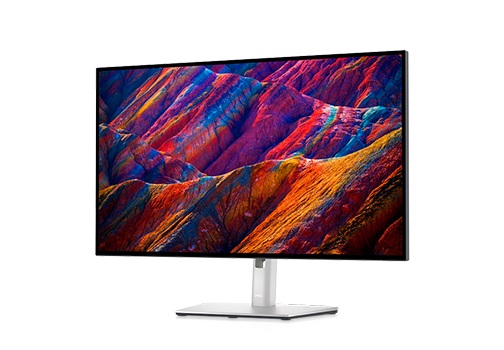
A customer looking for a monitor with a one-cable laptop connection needs two clear answers: which USB-C port carries the video signal, and how much power can the monitor deliver to the laptop?
The Dell UltraSharp U2723QE has three USB-C ports with similar-looking connectors. For a one-cable laptop connection, use port #5, as numbered in the Dell manual. On Dell’s US product page, Tech Specs → Connectivity → Interfaces lists up to 90W for the video-capable upstream port and up to 15W for a downstream accessory port. The page’s family selector also shows a 140W EPR option, but that figure applies to the range of models offered there—not to the U2723QE. This monitor is specified for up to 90W. Dell U2723QE specifications
The Dell manual is the source for the port numbers used in this guide. In its bottom-view diagram, the Ethernet jack is #13 and the downstream USB-C port is #15. SCAN uses a different illustration that groups several USB-A ports, so it labels that same downstream USB-C connector #13. Choose the diagram first, then make sure the legend uses the numbering from that exact image. The Shopify example below uses Dell’s published specifications as sample data. Dell manual, pp. 12–13, SCAN port illustration
Put the answer where the customer needs it
Answer the compatibility question near the price and add-to-cart controls, where the buying decision happens. Use the diagram to help customers locate the connector and the specification table to compare models. The 90W figure belongs in both places, but each needs its own context.
Put a usable connection note next to the price
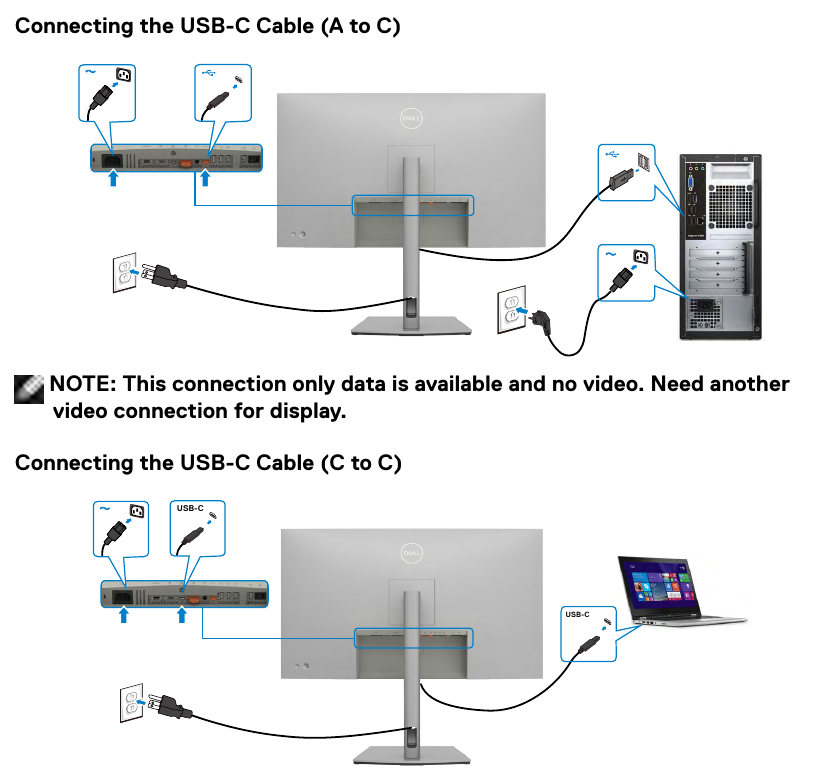
Dell U2723QE one-cable laptop connection. Plug the included one-metre USB-C to USB-C cable into rear port #5. The laptop port must support DisplayPort Alt Mode video output and USB Power Delivery input. With a compatible setup, the display supports up to 3840 × 2160 at 60Hz and up to 90W of USB PD (20V/4.5A) from the monitor to the laptop. The other included USB-A to USB-C cable is for USB data. For that setup, connect video separately over HDMI or DisplayPort.
Show the host requirements alongside the wattage rather than leaving customers to infer compatibility from the number alone. Dell’s manual describes USB-C support for Windows 10 and later, and its charging table marks a 130W-rated laptop as unsupported. The laptop negotiates power based on its own capabilities. The USB port is rated for up to 10Gbps, while the available video and data modes also depend on the host, cable and the monitor’s Display → USB-C Prioritization setting. Dell connection instructions, charging table, monitor menu
Add a text legend below the port photograph or diagram
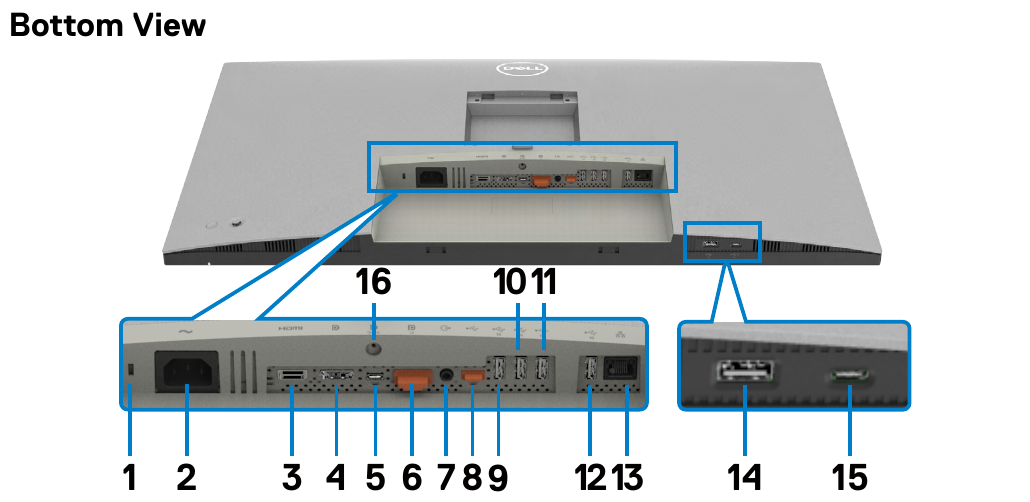
Pair the numbered image with a text legend directly below it. Customers should still be able to identify each port on a phone, even when the image is too small to read clearly. A visible <ol> also makes the port information available to tools that interpret the page’s text.
| Dell manual number | Port and physical location | Use it for |
|---|---|---|
| #5 | Main USB-C upstream, rear connector bay | Laptop video via DP 1.4 Alt Mode, upstream USB data and up to 90W USB PD to a compatible host |
| #8 | Secondary USB-C upstream, rear connector bay | USB data from a second computer. Connect video over HDMI #3 or DP In #4. If using KVM, pair the video input with the USB upstream connection in the monitor menu |
| #15 | USB-C downstream, underside quick-access area | USB data and up to 15W (5V/3A) to an accessory. Establish an upstream USB data connection first if you need the hub |
In the Dell manual diagram, #1 is the lock slot, #2 is AC, #3 and #4 are the HDMI and DisplayPort inputs, #6 is DP out, #7 is audio line out, #9–#12 are USB-A downstream ports, #13 is Ethernet, and #14 is the USB-A port with Battery Charging 1.2. In SCAN’s illustration, #5 and #8 retain their labels, #9 groups three USB-A ports, #10 is the remaining rear USB-A port, #11 is Ethernet, #12 is the quick-access USB-A port, and #13 is the USB-C accessory port. Keep the complete text legend matched to the illustration version shown on the page. Dell manual, SCAN illustration
Split the specification table by function
A single “Interfaces” row can blur an important distinction: charging a laptop is not the same as supplying power to a phone or accessory. Give host charging and downstream accessory power their own rows.
| Field | Dell U2723QE | ASUS PA279CRV | BenQ PD2705U |
|---|---|---|---|
| USB-C video input | #5, DP 1.4 Alt Mode | USB-C with DP Alt Mode | USB-C with DP Alt Mode |
| USB-C host PD | Up to 90W | Up to 96W | Up to 65W |
| Separate data upstream | #8 USB-C, video via another input | No separate data upstream listed on the cited spec sheet | USB-B upstream listed separately |
| USB-C downstream | #15, up to 15W for an accessory | One USB 3.2 Gen 1 Type-C downstream | One USB-C downstream |
| Included USB-C cabling | 1m C–C and 1m A–C, with different roles | USB-C cable, depending on region | USB-C cable |
Before adding accessory or in-box cable details to a listing, check the product page for the market where you sell. Bundles can vary by region. Dell, ASUS, BenQ
Wire the three displays to the same Shopify records
Use Product metafields when every variant shares the same hardware. An accessory bundle or warranty option may differ without changing the ports. If selecting a different variant changes the board or power rating, define the specification fields on Variants and enable the Product boolean specs.use_variant_specs. The example will then read the selected variant’s full set of fields. If a variant’s data is incomplete, the page displays a pending message instead of borrowing the product-level value. In particular, do not show the product’s 90W rating for a variant that it does not describe.
Create and fill the port entries
- Go to Settings → Metafields and metaobjects → Metaobjects → Add definition. Name the definition
USB-C Port Specand set its type tousb_c_port_spec. Setport_numberandpower_delivery_wattsto Integer; use Single-line text for the other fields listed below. Add a display-name field, make the entries available to the storefront, and set them to Active wherever publication status is enabled. - Go to Content → Metaobjects → USB-C Port Spec → Add entry and create entries for #5, #8 and #15. Appendix B contains the complete sample records. If you use the SCAN illustration, create a separate revision and its corresponding entries. Shopify metaobject entry guide
| Entry field | #5 | #8 | #15 |
|---|---|---|---|
model_code |
U2723QE |
U2723QE |
U2723QE |
diagram_revision |
dell-user-guide-bottom |
dell-user-guide-bottom |
dell-user-guide-bottom |
port_number |
5 |
8 |
15 |
role_key |
host_video_pd |
host_data |
accessory_downstream |
port_name / physical_location |
Main USB-C upstream / rear bay | Secondary USB-C upstream / rear bay | USB-C downstream / underside quick-access area |
primary_role |
One-cable laptop connection | Second computer’s USB data, with separate video | Accessory data and power |
video_input |
DP 1.4 Alt Mode, up to 4K 60Hz with a compatible setup | Separate HDMI #3 or DP In #4 | No video input |
power_delivery_watts |
90 |
Leave blank | 15 |
pd_voltage_current |
20V/4.5A, 15V/3A, 9V/3A, 5V/3A |
Leave blank | 5V/3A |
data_rate |
USB 3.2 Gen 2 upstream, port rated up to 10Gbps | USB 3.2 Gen 2 upstream, port rated up to 10Gbps | USB 3.2 Gen 2 downstream, port rated up to 10Gbps |
Reference the entries from the product
Create these definitions under Settings → Metafields and metaobjects → Products → Add definition. Then enter the values under Products → the product → Metafields. Set both reference fields to use the usb_c_port_spec type. Shopify custom metafield definitions
| Field | Type | Value for U2723QE |
|---|---|---|
specs.one_cable_supported |
True or false | true after checking. Leave unset if unknown. Use false for a confirmed unsupported model |
specs.model_code |
Single-line text | U2723QE |
specs.primary_usb_c_port |
Single metaobject reference | Reference the #5 entry directly |
specs.usb_c_ports |
List of metaobject references | #5, #8, #15, with the primary entry included |
specs.included_usbc_cables |
Multi-line text | 1m C–C for the laptop connection and 1m A–C for USB data with separate video |
specs.host_requirements |
Multi-line text | DP Alt Mode output and USB PD input on the chosen host port. Windows 10 or later per the manual |
specs.port_diagram_image |
File reference limited to images | Optional authorized image such as u2723qe_ports_dell-user-guide-bottom.png |
specs.port_diagram_revision |
Single-line text | dell-user-guide-bottom |
specs.spec_source_url |
URL | Link to the Dell manual bottom view |
specs.use_variant_specs |
True or false, Product switch | Unset or false for a single hardware spec. Use true to read Variant specs |
The buy box takes the value 90 from the primary port entry. If the store already uses specs.max_pd_wattage, locate every place that consumes it—including the theme, filters and feeds—before migrating the field. The goal is to give the team one authoritative place to maintain the wattage.
Install the Liquid snippet in a theme copy
First, duplicate the theme under Online Store → Themes so you can work on a copy. Open Edit code, add snippets/product-usbc-specs.liquid, and merge the usb_c translation keys from Appendix A into the appropriate locale file. Find the main-product section used by the product template. In Dawn, place the decision call beside buy_buttons; add the other calls where the port diagram and specification table should appear.
{% render 'product-usbc-specs', product: product, placement: 'decision' %}
{% render 'product-usbc-specs', product: product, placement: 'diagram' %}
{% render 'product-usbc-specs', product: product, placement: 'table' %}
The snippet validates the model and diagram revision, checks for duplicate port numbers, and confirms that the primary reference appears in the list with the video-and-PD role. When an image is attached, it also checks the revision suffix in the filename returned by image_url. Renaming an incorrect image can make that check pass when it should not, so always inspect the visible port labels in the theme preview.
For products with hardware variants, test each ?variant=ID URL first. Then connect the theme’s variant-update flow to the Section Rendering API so the custom specification containers refresh along with the price and product form. Confirm that adding the product to the cart adds the selected variant. If the theme already outputs {{ product | structured_data }}, begin with the three visible placements. If you manage the generator for that Product object, merge the optional properties output into its existing additionalProperty array. Preserve the existing offer, availability and variant information. Shopify Section Rendering API, Dawn product section, Schema.org additionalProperty
Validate the answer on mobile, in HTML and in the cited source
Use the same question at every stage of validation: Can the Dell U2723QE display a laptop’s image and charge the laptop through one USB-C cable? If so, which port should the customer use, and what is the maximum wattage?
On a phone, check the area beside the price. The customer should be able to see port #5, the up-to-90W rating and the host requirements without hunting for them. Make sure the diagram agrees with the legend, then disable images and confirm that the text still explains what to connect. In the returned HTML, inspect the buy-box element. If you extended the existing Product JSON-LD, parse that separately. Finding 90W somewhere in the full page is not enough: the value could belong to a filter or another port. When the power property is present, verify that it is the numeric value 90, uses WTT as its unit, and describes laptop charging.
| Local fixture | Expected buy-box output | Optional properties output |
|---|---|---|
| #5 selected and all entries and image on the same revision | Shows #5 and up to 90W | Numeric 90, with separate #8 and #15 facts |
Image name changed to u2723qe_ports_scan-ports.png alone |
Pending confirmation | [] |
Primary reference missing, support marked true |
Pending confirmation | [] |
Support explicitly set to false |
One-cable video and laptop power marked unsupported | Boolean false |
These fixture checks run the Liquid snippet against Shopify-shaped input objects. They do not replace testing in the actual store. The target store still needs a theme preview, variant checks and verification of the image URL returned by its own CDN.
When evaluating an AI-generated answer, record the exact question, date, market and source links. First check whether the answer is correct. Then check whether it cites your product page and, crucially, whether the cited passage actually supports the claim. An answer that correctly relies on the Dell manual may help the buyer, but it does not count as a citation to your store. If the answer cites your page but points only to a generic interfaces list with no clear link between each port and its role, add that context beside the buy button or diagram. Once the page is available to the search service, ask the same question again and record what changed. Google guidance on AI search features
Taken together, these checks keep three kinds of evidence separate: Dell’s public documentation, the result from the local template fixture, and the test that still needs to be run in the live store. Keeping them distinct makes it possible to judge whether a change helped customers, changed the page output, or affected which sources an AI answer cites.
Appendix A · Liquid snippet and English locale
Save the first code block as snippets/product-usbc-specs.liquid. Merge the English locale keys in the second block into the appropriate locale file.
{% doc %}
  Render shared USB-C specifications for a product.
  @param {product} product - The product owning the specs metafields.
  @param {string} placement - decision, diagram, table, or properties.
  @example
    {% render 'product-usbc-specs', product: product, placement: 'decision' %}
{% enddoc %}
{%- liquid
  assign owner = product
  if product.metafields.specs.use_variant_specs.value == true
    assign owner = product.selected_or_first_available_variant
  endif
  assign specs = owner.metafields.specs
  assign supported = specs.one_cable_supported.value
  assign model_code = specs.model_code.value
  assign revision = specs.port_diagram_revision.value
  assign ports = specs.usb_c_ports.value
  assign main_port = specs.primary_usb_c_port.value
  assign main_handle = main_port.system.handle
  assign main_number = main_port.port_number.value
  assign main_watts = main_port.power_delivery_watts.value
  assign main_profiles = main_port.pd_voltage_current.value
  assign requirements = specs.host_requirements.value
  assign cables = specs.included_usbc_cables.value
  assign diagram = specs.port_diagram_image.value
  assign source_url = specs.spec_source_url.value
  assign diagram_matches = true
  if diagram != blank
    assign diagram_filename = diagram.preview_image | image_url: width: 1200 | split: '?' | first | split: '/' | last
    assign revision_marker = revision | prepend: '_' | append: '.'
    unless diagram_filename contains revision_marker
      assign diagram_matches = false
    endunless
  endif

  assign valid_list = true
  assign found_main = false
  assign numbers = '|'
  for port in ports
    assign number = port.port_number.value
    assign number_marker = number | prepend: '|' | append: '|'
    if port.model_code.value != model_code or port.diagram_revision.value != revision
      assign valid_list = false
    endif
    if number == blank or numbers contains number_marker
      assign valid_list = false
    endif
    if port.port_name.value == blank or port.physical_location.value == blank or port.primary_role.value == blank
      assign valid_list = false
    endif
    if port.video_input.value == blank or port.data_rate.value == blank
      assign valid_list = false
    endif
    assign numbers = numbers | append: number | append: '|'
    if main_handle != blank and port.system.handle == main_handle
      assign found_main = true
    endif
  endfor

  assign mode = 'pending'
  if supported == false
    assign mode = 'unsupported'
  elsif supported == true and found_main and valid_list and diagram_matches
    if model_code != blank and revision != blank and requirements != blank and cables != blank
      if main_port.role_key.value == 'host_video_pd' and main_watts != blank and main_watts > 0
        assign mode = 'ready'
      endif
    endif
  endif

  assign support_label = 'usb_c.pending' | t
  if mode == 'ready'
    assign support_label = 'usb_c.supported' | t
  elsif mode == 'unsupported'
    assign support_label = 'usb_c.unsupported' | t
  endif
  assign title = 'usb_c.title' | t
  assign watts_label = 'usb_c.host_power' | t
  assign requirements_label = 'usb_c.requirements' | t
  assign cables_label = 'usb_c.cables' | t
  assign port_label = 'usb_c.port' | t
  assign video_label = 'usb_c.video' | t
  assign data_label = 'usb_c.data' | t
  assign port_power_label = 'usb_c.port_power' | t
-%}

{%- case placement -%}
  {%- when 'decision' -%}
    <aside class="usbc-decision-card" aria-label="{{ title | escape }}">
      <h3>{{ title | escape }}</h3>
      {%- if mode == 'ready' -%}
        <p><strong>{{ product.title | escape }}</strong>:
          {{ 'usb_c.connection' | t: number: main_number, watts: main_watts, video: main_port.video_input.value | escape }}
        </p>
        <p><strong>{{ requirements_label | escape }}:</strong>{{ requirements | escape | newline_to_br }}</p>
        <p><strong>{{ cables_label | escape }}:</strong>{{ cables | escape | newline_to_br }}</p>
        <a href="#usbc-port-diagram">{{ 'usb_c.view_ports' | t | escape }}</a>
      {%- else -%}
        <p>{{ support_label | escape }}</p>
      {%- endif -%}
    </aside>

  {%- when 'diagram' -%}
    {%- if mode == 'ready' -%}
      <figure id="usbc-port-diagram" class="usbc-port-diagram">
        {%- if diagram.media_type == 'image' and diagram.preview_image != blank -%}
          {%- assign diagram_alt = 'usb_c.diagram_alt' | t: model: model_code -%}
          {{ diagram.preview_image | image_url: width: 1200 | image_tag: widths: '360, 540, 800, 1200', sizes: '(min-width: 990px) 820px, 100vw', loading: 'lazy', alt: diagram_alt }}
        {%- endif -%}
        <figcaption>
          <h3>{{ 'usb_c.legend' | t | escape }}</h3>
          <ol class="usbc-port-legend" role="list">
            {%- for port in ports -%}
              <li value="{{ port.port_number.value }}">
                <strong>#{{ port.port_number.value }} {{ port.port_name.value | escape }}</strong>
                ({{ port.physical_location.value | escape }}):{{ port.primary_role.value | escape }}。
                {{ video_label | escape }}:{{ port.video_input.value | escape }}。
                {%- if port.power_delivery_watts.value != blank -%}
                  {{ port_power_label | escape }}:{{ port.power_delivery_watts.value }}W。
                {%- endif -%}
              </li>
            {%- endfor -%}
          </ol>
          {%- if source_url != blank -%}
            <a href="/en/{{ source_url | escape }}/">{{ 'usb_c.diagram_source' | t | escape }}</a>
          {%- endif -%}
        </figcaption>
      </figure>
    {%- endif -%}

  {%- when 'table' -%}
    <table class="usbc-spec-table">
      <caption>{{ product.title | escape }} · {{ 'usb_c.specifications' | t | escape }}</caption>
      <tbody>
        <tr><th scope="row">{{ title | escape }}</th><td>{{ support_label | escape }}</td></tr>
        {%- if mode == 'ready' -%}
          <tr>
            <th scope="row">{{ watts_label | escape }}</th>
            <td>{{ main_watts }}W{% if main_profiles != blank %}({{ main_profiles | escape }}){% endif %}</td>
          </tr>
          {%- for port in ports -%}
            {%- assign number = port.port_number.value -%}
            <tr>
              <th scope="row">{{ port_label | escape }} #{{ number }}</th>
              <td>{{ port.port_name.value | escape }} · {{ port.physical_location.value | escape }} · {{ port.primary_role.value | escape }}</td>
            </tr>
            <tr><th scope="row">#{{ number }} · {{ video_label | escape }}</th><td>{{ port.video_input.value | escape }}</td></tr>
            <tr><th scope="row">#{{ number }} · {{ data_label | escape }}</th><td>{{ port.data_rate.value | escape }}</td></tr>
            {%- if port.power_delivery_watts.value != blank -%}
              <tr>
                <th scope="row">#{{ number }} · {{ port_power_label | escape }}</th>
                <td>{{ port.power_delivery_watts.value }}W{% if port.pd_voltage_current.value != blank %}({{ port.pd_voltage_current.value | escape }}){% endif %}</td>
              </tr>
            {%- endif -%}
          {%- endfor -%}
          <tr><th scope="row">{{ cables_label | escape }}</th><td>{{ cables | escape | newline_to_br }}</td></tr>
          <tr><th scope="row">{{ requirements_label | escape }}</th><td>{{ requirements | escape | newline_to_br }}</td></tr>
        {%- endif -%}
      </tbody>
    </table>

  {%- when 'properties' -%}
    [
      {%- if mode == 'ready' -%}
        {"@type":"PropertyValue","name":{{ title | json }},"value":true},
        {"@type":"PropertyValue","name":{{ watts_label | json }},"value":{{ main_watts | json }},"unitCode":"WTT"},
        {%- for port in ports -%}
          {%- assign port_name = port_label | append: ' #' | append: port.port_number.value -%}
          {%- capture port_value -%}
            {{ port.port_name.value }} · {{ port.physical_location.value }} · {{ port.primary_role.value }};
            {{ video_label }}:{{ port.video_input.value }};{{ data_label }}:{{ port.data_rate.value }}
            {%- if port.power_delivery_watts.value != blank %};{{ port_power_label }}:{{ port.power_delivery_watts.value }}W{% endif -%}
          {%- endcapture -%}
          {"@type":"PropertyValue","name":{{ port_name | json }},"value":{{ port_value | strip | json }}},
        {%- endfor -%}
        {"@type":"PropertyValue","name":{{ cables_label | json }},"value":{{ cables | json }}},
        {"@type":"PropertyValue","name":{{ requirements_label | json }},"value":{{ requirements | json }}}
      {%- elsif mode == 'unsupported' -%}
        {"@type":"PropertyValue","name":{{ title | json }},"value":false}
      {%- endif -%}
    ]
{%- endcase -%}
{
  "usb_c": {
    "title": "USB-C connection",
    "supported": "Supported. Check the host and cable requirements.",
    "unsupported": "This model does not support video and laptop charging over one USB-C cable.",
    "pending": "One-cable support is pending confirmation. Check the official specifications.",
    "connection": "Connect rear upstream port #{{ number }}. {{ video }}, with up to {{ watts }}W USB PD to a compatible laptop.",
    "requirements": "Host connection requirements",
    "cables": "Included USB-C cables",
    "view_ports": "View port locations",
    "diagram_alt": "{{ model }} bottom view. The legend gives the numbered port locations.",
    "legend": "USB-C port locations and connections",
    "diagram_source": "View the source diagram",
    "specifications": "USB-C specifications",
    "port": "USB-C port",
    "video": "Video input",
    "data": "USB data",
    "host_power": "Maximum USB PD to the laptop",
    "port_power": "Maximum power from this port"
  }
}
Appendix B · Port entry values
Use these sample entries with the manufacturer’s drawing. For each input fixture described above, render the decision placement and parse the properties output.
[
  {
    "model_code": "U2723QE",
    "diagram_revision": "dell-user-guide-bottom",
    "port_number": 5,
    "role_key": "host_video_pd",
    "port_name": "Main USB-C upstream",
    "physical_location": "Rear connector bay",
    "primary_role": "One-cable laptop video, data and power",
    "video_input": "DP 1.4 Alt Mode, up to 3840 × 2160 at 60Hz",
    "power_delivery_watts": 90,
    "pd_voltage_current": "20V/4.5A, 15V/3A, 9V/3A, 5V/3A",
    "data_rate": "USB 3.2 Gen 2 upstream, rated up to 10Gbps"
  },
  {
    "model_code": "U2723QE",
    "diagram_revision": "dell-user-guide-bottom",
    "port_number": 8,
    "role_key": "host_data",
    "port_name": "Secondary USB-C upstream",
    "physical_location": "Rear connector bay",
    "primary_role": "Second host USB data, without laptop charging",
    "video_input": "Separate video over HDMI #3 or DP In #4",
    "power_delivery_watts": null,
    "data_rate": "USB 3.2 Gen 2 upstream, rated up to 10Gbps"
  },
  {
    "model_code": "U2723QE",
    "diagram_revision": "dell-user-guide-bottom",
    "port_number": 15,
    "role_key": "accessory_downstream",
    "port_name": "USB-C downstream",
    "physical_location": "Underside quick-access area",
    "primary_role": "USB data and power for compatible accessories",
    "video_input": "No video input",
    "power_delivery_watts": 15,
    "pd_voltage_current": "5V/3A",
    "data_rate": "USB 3.2 Gen 2 downstream, rated up to 10Gbps"
  }
]

WESWOO — Shopify Storefront Development
We help Chinese brands expand internationally with storefront development and Shopify Plus integration services, supporting their cross-border commerce operations.
- Shopify storefront branding
- International UI design
- Multichannel social media marketing