
Imagine an ecommerce brand selling a desktop dock to office workers. You already have clear product photographs on white, but the homepage needs a scene that helps visitors understand where the product belongs.
Asking AI for a premium desk, a dock and a laptop can produce an attractive picture. The dock may also acquire a different shape or incorrect ports. Even a convincing standalone image can lose half its subject when placed in a mobile homepage banner.
We will take a different approach: plan images around the needs of the whole site, then use AI for part of their production. This tutorial uses official CalDigit TS4 product photography to generate actual scene candidates and examine the decisions between an original photograph and a usable page handoff.
This is a demonstration of research and production methods, not a project commissioned by CalDigit from WESWOO or an assessment of product performance. Original photographs and connector information come from the official CalDigit product page.
Start with the original: what can change, and what must remain?
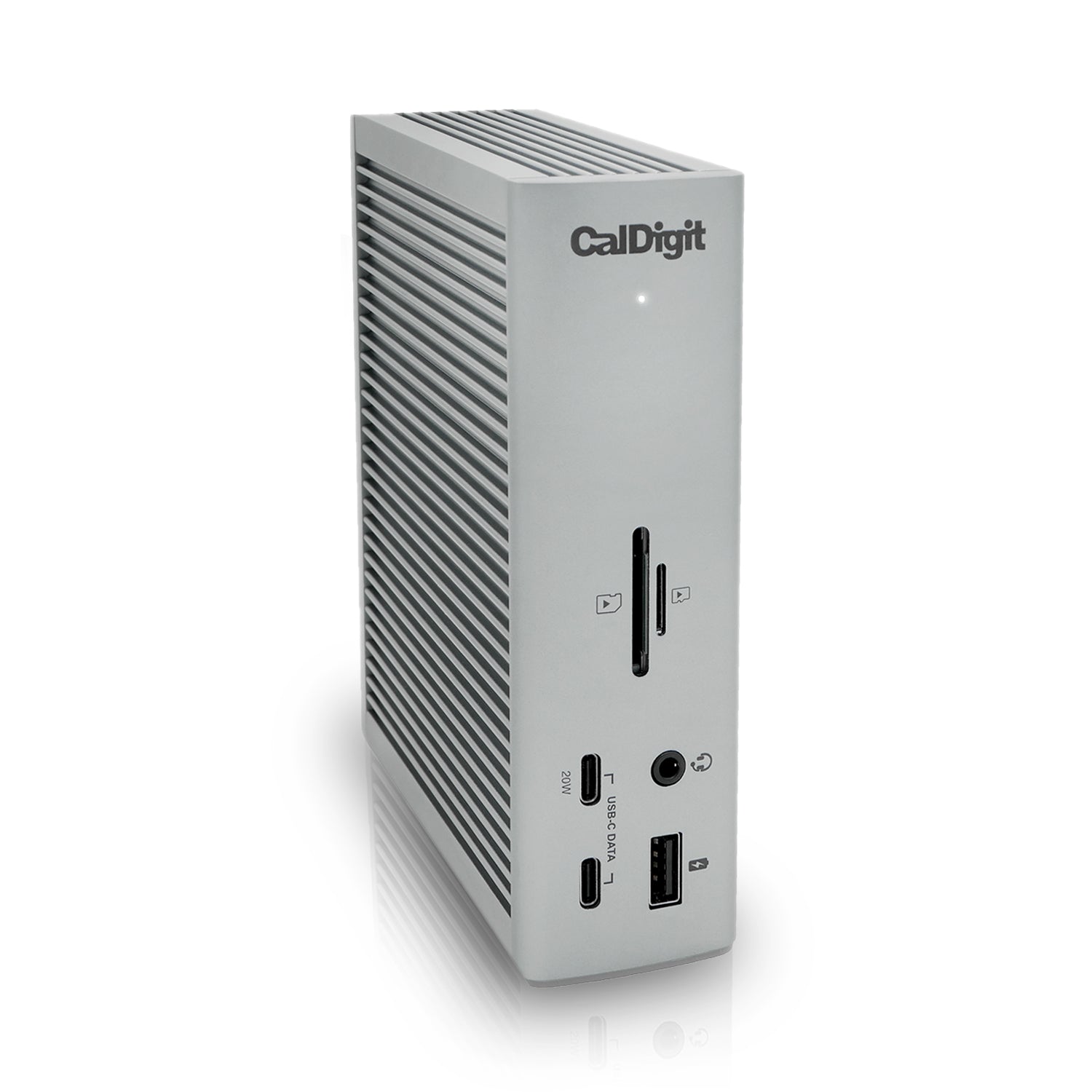
Figure 1 | The input for this demonstration: an unchanged official CalDigit TS4 product photograph. Source.
This product has distinct identifiers: its silver housing, side ribs, front card slots, connectors and printed markings can all be checked against the photograph. It should not become an interchangeable technology box.
Before editing, distinguish two groups. Background, desktop material and composition can be explored. Product shape, connectors, logos and material appearance must be checked against the source.
Three different tasks are often grouped under the word rendering:
- Preserve the product photograph and generate or replace its background. This suits an existing clear photograph that needs a setting, and is the main approach discussed here.
- Regenerate the whole image, including the product. This gives more freedom but can redraw product details. Uploading a reference does not guarantee an unchanged subject.
- Render an accurate 3D model. This provides control over angle, structure and materials, but requires a model, textures and a rendering workflow. It is a different deliverable from generating a scene from a short description.
If a client needs a rear connector photograph but only has a front view, obtain the missing source material first. A prompt cannot substitute for missing product information.
Give the homepage, collection and product page different jobs
For a custom store, define image requirements alongside the pages. The same picture serves different purposes in different positions.
| Page position | What this dock needs to communicate | Suggested image |
|---|---|---|
| Homepage banner | Its office setting and the brand’s visual character | A scene with the product on the right and room for a heading on the left |
| Collection listing | Recognizable shape and easy comparison with other products | Clean product photography with consistent backgrounds and subject scale |
| Product gallery | Front and rear appearance, and connector locations | Official or owned real product and detail photographs |
| Product page scene module | How it looks on a desk | A reviewed environment image beside a brief explanation |
If the homepage heading belongs on the left, ask for a relatively quiet area there during generation. Generating a centrally positioned product and later placing a heading on top can compromise both.
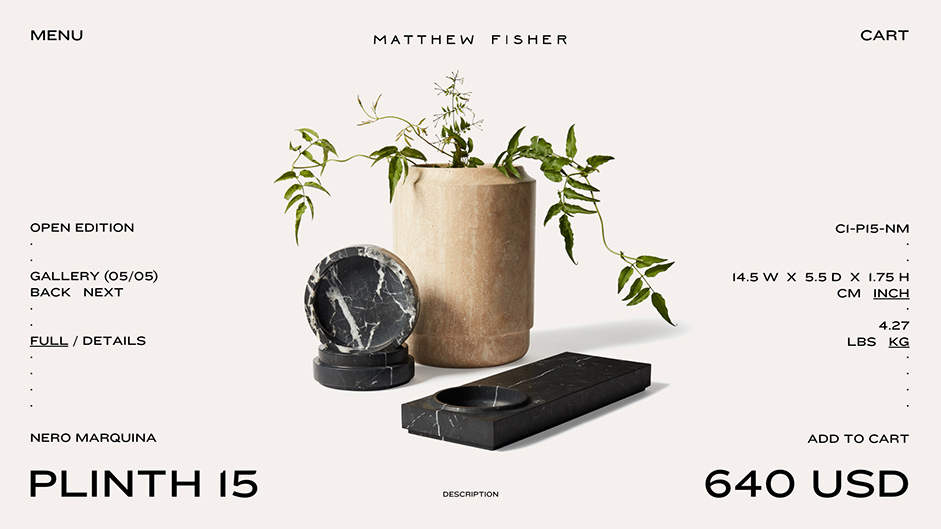
Design reference | Matthew Fisher, designed by CUSP. Image source: Awwwards case study. This shows the original website, not an example of AI generation.
In this real website reference, the product occupies the principal central area. Name, price and dimensions have distinct positions, and props do not fill the background. A technology store can learn from this hierarchy while explaining ports and compatibility more directly. Furniture or art presentation cannot simply be copied across.
This is why image planning and site design belong together: decide what the picture explains and what the text explains before deciding how to photograph or generate it.
Generate an actual candidate: fix the product angle, explore the scene
For this demonstration, we used the conversation’s AI image editing tool. We supplied Figure 1, requested a scene edit of that product, added composition and detail constraints, and submitted the generation. We saved the source and result for enlarged side-by-side comparison. The Shopify integration and acceptance steps later in this article are implementation methods; this demonstration did not include a live-store deployment test.
The production brief was specific:
- Keep the upright position and front three-quarter angle. Do not ask AI to invent a rear view.
- Place the product on the right, leaving space for the homepage heading and button on the left.
- Use a warm gray desktop, soft side light and restrained background elements.
- Add no cables. The source does not show the rear connection points, and depicting connections could introduce errors.
- Generate no headings, specifications or interface labels inside the image. Page components should render website text.
A starting brief for a similar task, supplied with the relevant product image, would be:
Use this official CalDigit TS4 product photograph as the product reference. Keep its upright position, front three-quarter angle, silver housing and visible connector layout. Place it on the right side of a warm gray desk with soft natural light from the left. Leave a clean area for a website heading on the left. Use only a lightly blurred office background. Add no cables, accessories or webpage text. Preserve the original logo, card slots, connectors and markings as closely as possible. If a detail cannot be preserved accurately, do not invent a replacement.
These are production constraints, not a guarantee of model accuracy or consistent results across tools. The actual submitted English prompt is reproduced below so that the requirements can be compared with the output.
Create a photographic scene-edit candidate for a tutorial using this exact CalDigit TS4 product photograph as the source. Preserve its vertical orientation, three-quarter front view, silver ribbed body, actual CalDigit wordmark, white LED, visible card slots and port layout as closely as possible. Do not add ports, move symbols or invent any new visible product surface. Put the product in the right half of a wide 3:2 composition, standing naturally on a quiet warm gray desk; a very softly blurred dark monitor edge in the far background, restrained neutral architectural workspace, soft daylight from the left, grounded short contact shadow. Leave the left third uncluttered for a website heading that will be HTML; DO NOT put any text, labels, UI, diagrams or frames into the image. No cables attached to product because rear connector is not visible; no accessory claims. Understated premium editorial commercial photography, not futuristic, not a rendered plastic object. This is an AI scene experiment for editorial teaching, not an official CalDigit campaign or endorsement.
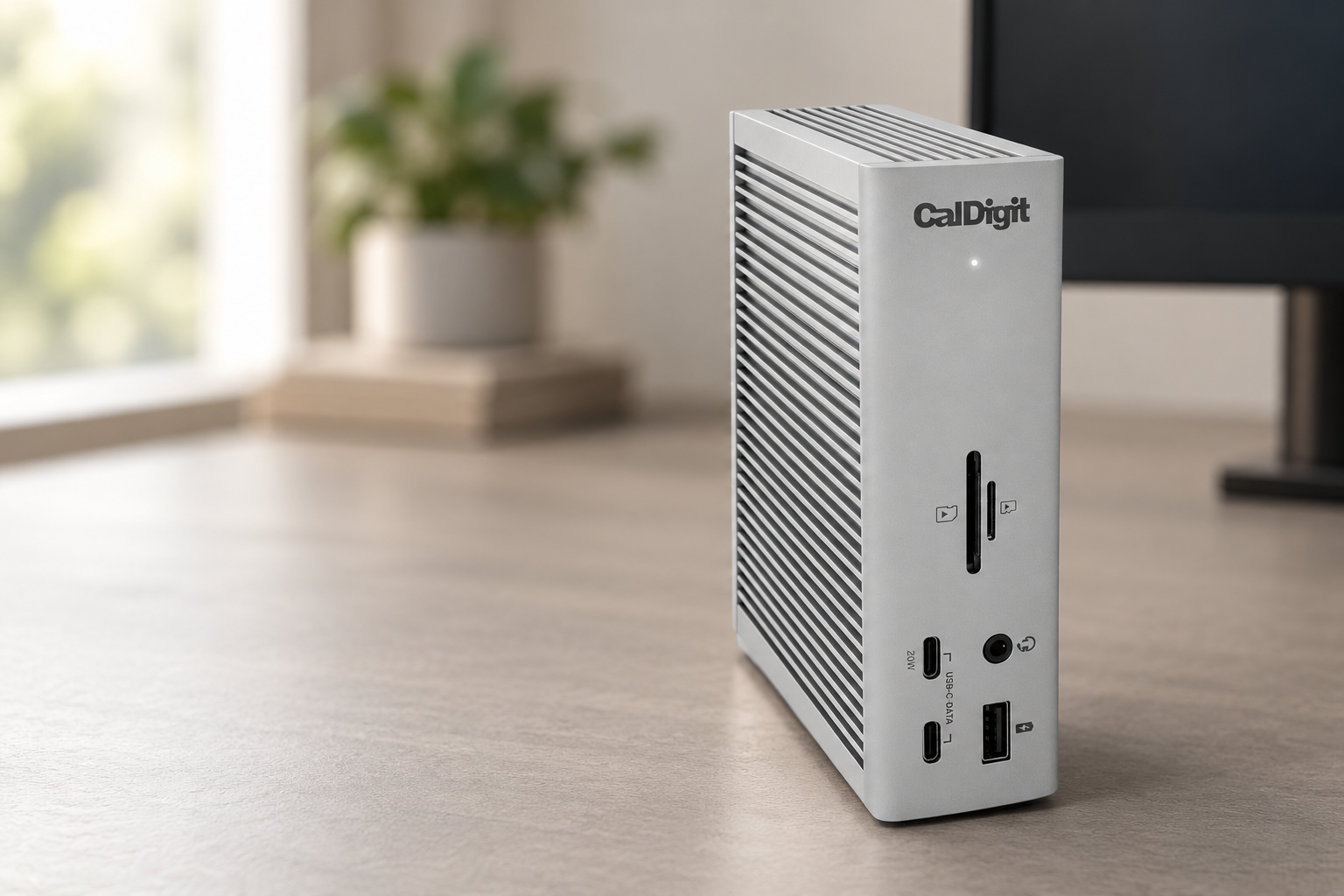
Figure 2 | The actual desktop scene candidate generated for this tutorial. Figure 1 is the original product photograph; the environment here is AI generated. The actual submitted prompt is reproduced above.
Decide what the result can be used for
First inspect the whole scene: placement on the desk, contact shadow, background distraction and room for the heading. Then inspect the logo, LED, card slots, USB connectors, printed markings and ribbed texture against the original.
This candidate broadly achieves the requested right-side placement, contact shadow and left-side space. The visible connector categories can be identified for an initial comparison. However, reflections and small details have been redrawn. Tiny markings and symbols cannot be declared accurately reproduced from this thumbnail. The image remains a layout and atmosphere exploration candidate, not an approved commercial asset. Homepage use also requires product-fidelity review, while original front and rear detail photographs remain in the gallery. The upper-left window frame introduces light-dark variation: test actual text placement on the page rather than assuming any empty area will accommodate a heading.
Even a scene that passes an overall review should not automatically replace connector photographs in a product gallery. When customers zoom in, they want to understand what they will receive.
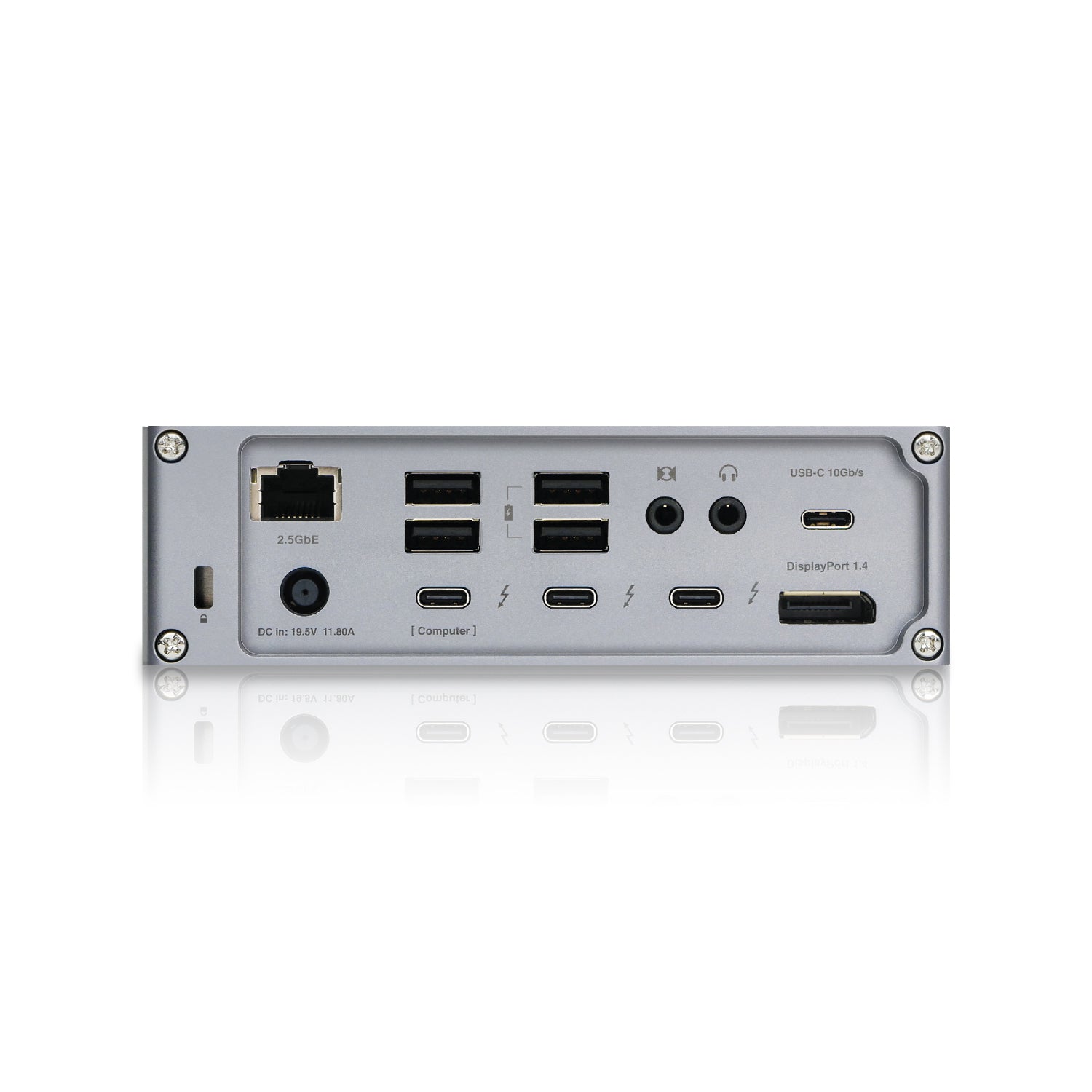
Figure 3 | The rear connector view continues to use the official original photograph. Source.
The rear photograph visibly labels DisplayPort 1.4 and shows the various connectors. If a generated image replaces that location with HDMI or adds a connector on another face, it changes product information. A disclaimer cannot make the error acceptable. Check connectors against official information; do not derive specifications from generated output.
If the scene works but part of the product is wrong, try a local correction and compare again. If it still fails, return to a composite that preserves the original subject, or use real photography. For a completely new viewpoint, additional photographs or an accurate 3D model are more direct than repeatedly asking the model to guess the rear.
A desktop image may reveal problems only on mobile
A desktop design can comfortably place the product on the right and the heading on the left. On a narrow mobile screen, filling the banner with the same landscape image may crop away most of the product. Shrinking the whole image can make the subject too small.
Design and development should choose an appropriate solution together:
- Stack text and image on mobile. Put the heading above or below an uncropped composition. This suits pages that do not require overlaid text.
- Create a separate mobile composition. Retain the product and visual direction while giving it adequate size in a portrait frame. Review the new output independently.
- Adjust the display focal point. Use this only when the crop still preserves important content. A focal point cannot create space missing from the original image.
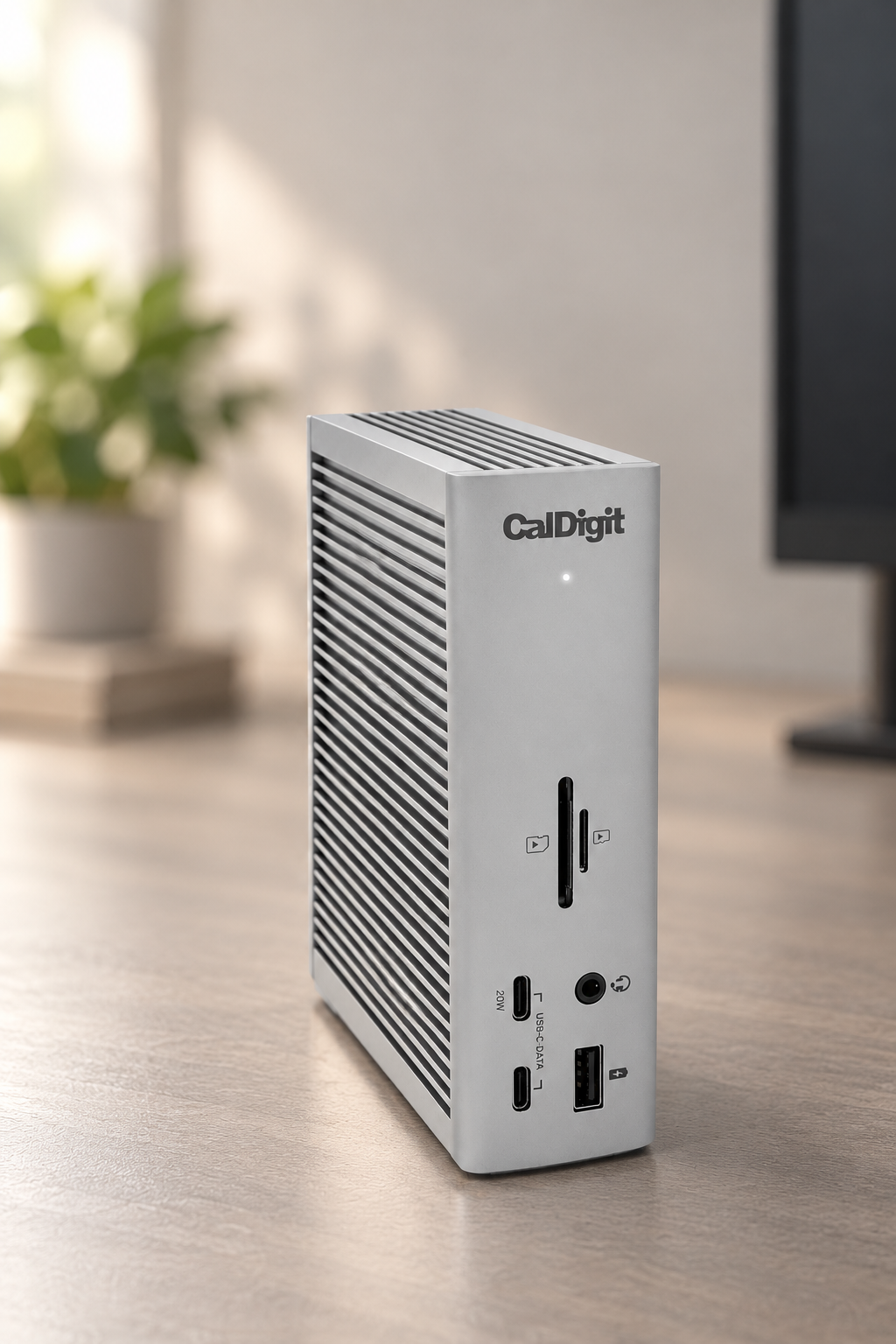
Figure 4 | The actual portrait candidate generated for this tutorial. The official product photograph constrains the subject, while Figure 2 supplies the environment and lighting reference. Its actual prompt follows below. Product details require a separate review.
Create ONE vertical 2:3 mobile composition candidate for an editorial tutorial. Image 1 is the authoritative CalDigit TS4 product identity photograph. Image 2 is ONLY the environment and light reference; do not use it to correct product details. Preserve Image 1’s upright three-quarter front pose, silver ribbed metal housing, CalDigit logo, LED and visible front port/card slot arrangement as closely as possible, with no imagined extra product surface, connectors or cables. Same restrained warm gray desk and soft daylight from the left as Image 2. Product centered horizontally, its complete top and base visible in lower two thirds with margin; the upper third quiet softly blurred pale gray environment to accommodate actual webpage HTML heading OUTSIDE this image. Avoid a huge window frame or high contrast detail in that upper area. No type, no lettering except the real existing product wordmark/markings, no diagram or UI. Realistic grounded commercial photography. This is a new composition experiment, not a literal crop, and is not an official campaign.
The selected mobile page proposal places the heading, explanation and button above the image, with this portrait candidate below. This avoids squeezing the subject and heading into a narrow landscape banner or cropping the top and base to fill the screen. Subject placement and background differ from the desktop version. This is a new composition, not a simple size export, and must be reviewed again.
These are page design choices, not a universal set of switches available in every Shopify theme. First check whether the current section supports mobile images, content positioning or focal points. Configure existing capabilities when sufficient; build a custom component when the design genuinely requires one.
Use actual webpage elements for headings and buttons. They can then reflow on mobile, change between languages and be edited without regenerating the product image. AI explores the picture; page components make it usable in different contexts.
Hand off an image set developers can use correctly
The design handoff should contain more than a folder called Final. Explain each image’s role, associated product and display requirements.
For this example, a handoff record could use these suggested names. They do not indicate files already deployed in a store:
ts4-home-desktop: Homepage scene candidate, product on the right, desktop heading on the left; mobile requires a separate layout decision.ts4-product-front: Real front product photograph for the gallery; preserve the original file against later scene edits.ts4-product-rear: Real rear connector photograph beside the connector explanation; do not substitute the front scene.ts4-lifestyle: Product-page environment presentation. Explain the scene alongside the image; included accessories remain governed by product information.
Add file version, source, actual dimensions and the relevant product or variant. For another store with multiple colors or models, document the image-to-option relationships. Do not invent TS4 colors or versions absent from this example.
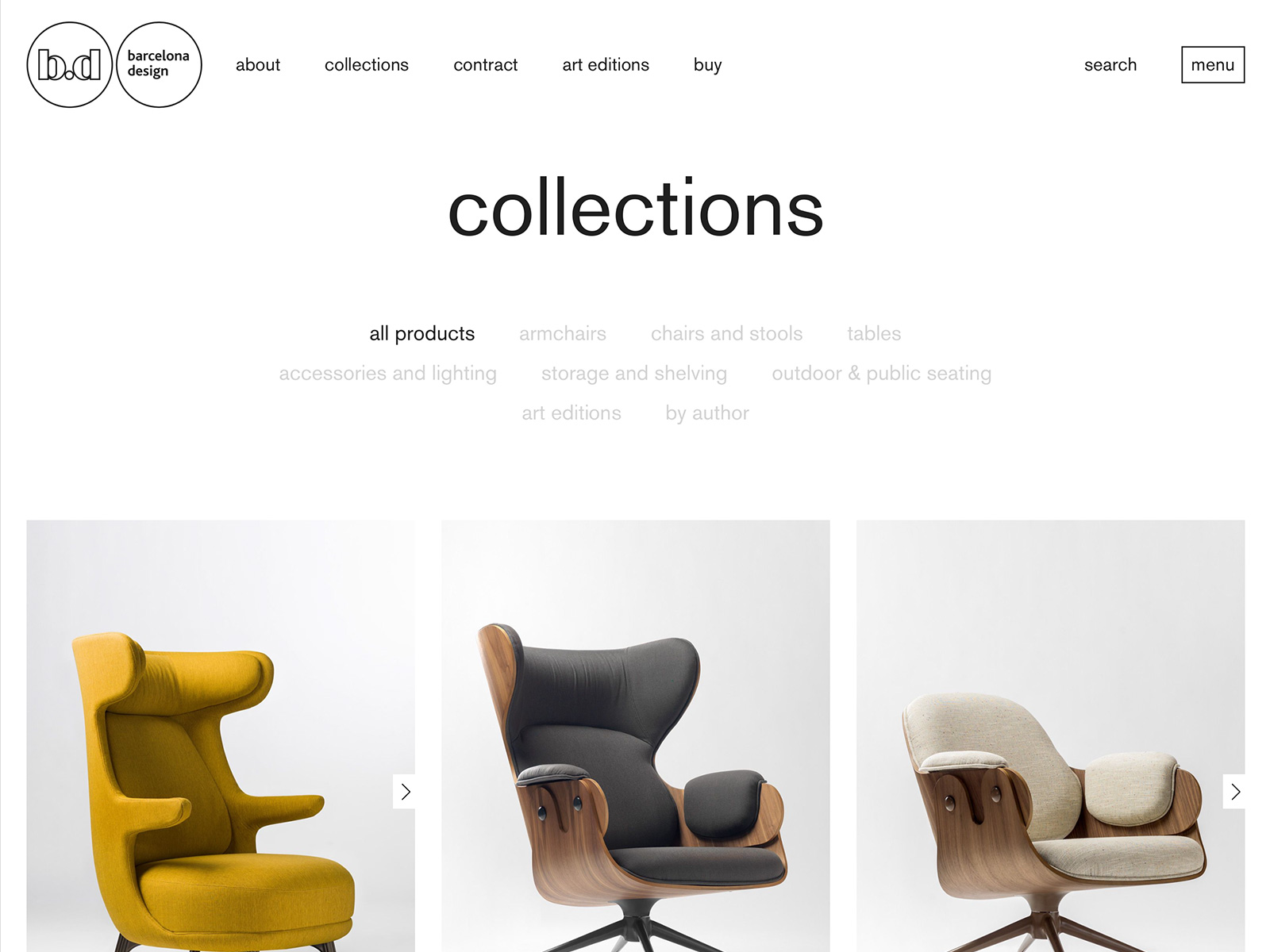
Design reference | BD Barcelona Design, designed by Miguel Trias Works. Image source: Awwwards. Used to examine listing-image consistency; this does not establish that the project used AI.
Differences in subject size, background brightness and camera distance become obvious in a collection grid. Before generating a batch, compare two or three products in the design and establish a shared rule. Photoroom’s product catalog editor offers batch background replacement and Batch consistency to reduce variation. It does not guarantee identical backgrounds, so review the whole set afterward. Photoroom documentation
Connect the images to Shopify, then follow the customer journey
For an ordinary product gallery, go to Products → the relevant product → Media to add images and change their order. To try a scene in Shopify’s file editor, open the media thumbnail, describe the scene in Generate, generate it, and use Save as new to preserve the original. Availability and output conditions depend on the actual store interface. Shopify media editing documentation
A homepage scene belongs in its corresponding homepage section. Uploading it to a product gallery does not complete that work. Environment imagery, specifications and the real product gallery may also occupy separate modules on a product page; map them to the actual theme structure.
Before launch, check three areas on both desktop and mobile:
Clarity. Does homepage text cover the product? Is the shape recognizable in collection thumbnails? Are important details clear when gallery images are enlarged?
Accuracy. After selecting a product or option, does the image still match it? Do front and rear connector photographs agree with their explanations? Could scene props mislead customers about box contents?
Maintenance and loading. Compare loading before and after replacement and check whether large images slow the first screen. Ask the person maintaining the store to replace an asset, confirm they can find its intended location, and check the page remains intact. Compression and dimensions depend on display position and actual clarity; one fixed file-size threshold cannot decide quality.
From WESWOO’s perspective on custom store delivery, the work lies in these connections. Design defines what each page needs, production follows that brief, development connects imagery, text, product data and device layouts, and the team reviews the result together. The intended deliverable is a site that expresses the brand while supporting shopping and maintenance.
AI shortens part of image production, but does not decide where an image belongs. Considering product facts, image purpose and page experience together makes generated imagery more useful.
Information and image sources
- CalDigit TS4 official product page: original images and connector information
- Shopify: media generation in the file editor
- Shopify: adding and editing product media
- Photoroom: product catalog background editing
- Designers and sources for both Awwwards references are credited in their respective captions. They support page-design analysis.
WESWOO — Shopify Storefront Development
We help Chinese brands expand internationally with storefront development and Shopify Plus integration services, supporting their cross-border commerce operations.
- Shopify storefront branding
- International UI design
- Multichannel social media marketing