
Ask AI to make a Shopify product page clearer and it can quickly produce a larger image, shorter copy and a more prominent purchase button. Before publishing, however, you still need to check what happens when a shopper uses that page. Does the selected variant reach the cart? Does the sold-out option follow the store’s inventory rules? Do the mobile layout and existing apps still work?
Shopify’s October 28 Fall ’26 announcement introduced Canvas in early access. A separate update brought simulated shopping tests to some Sidekick storefront recommendations. These are useful developments, but they make it especially important to distinguish a convincing preview from a verified buying flow. Fall ’26 announcement, AI-tested recommendations
This guide uses a hypothetical product-page redesign: make variant selection easier to understand, improve the purchase information, and check the cart flow. It is a proposed working method, not a report of work completed in a client’s store.
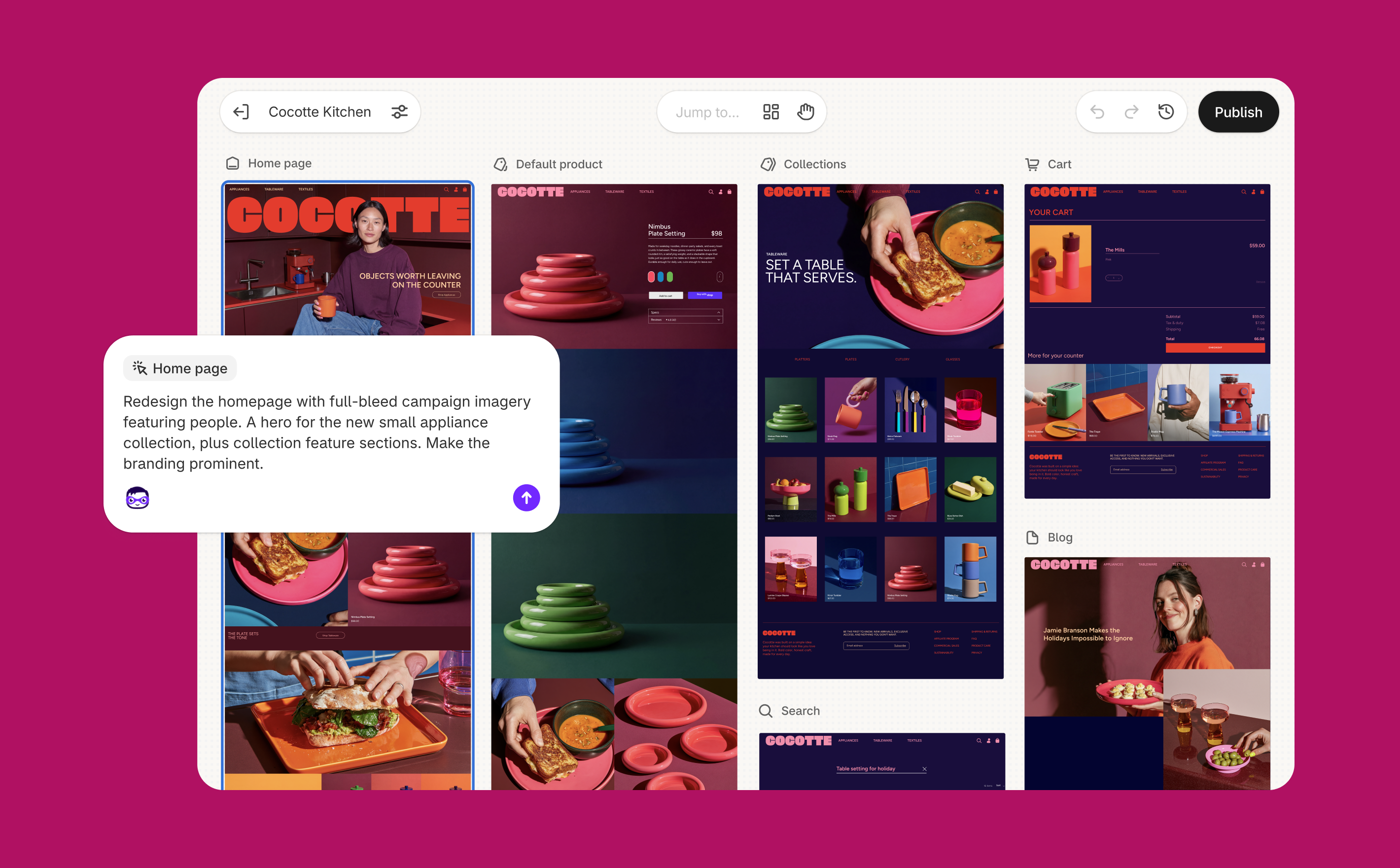
Start with the editing route your store can actually use
Check your own admin before planning around Canvas. Access is limited to certain stores. It requires a desktop device, a plan with theme customization and an eligible theme. Staff need Online store → Themes → Edit code permission. Shopify-developed themes and custom themes are supported; third-party themes are not. A Theme Store listing alone does not establish who developed a theme. Canvas requirements, theme sources
Moving a theme into Canvas also changes how it can be maintained. It subsequently opens only in Canvas, does not receive theme updates and cannot be downloaded. Canvas currently cannot add or configure app blocks or app embeds, or customize a theme for individual markets. List the store’s dependencies before deciding to move, particularly its apps, translations and market-specific arrangements. These limitations do not establish that every existing integration fails, but they do require checking the store’s actual setup.
If Canvas is unavailable or unsuitable, continue with the existing theme editor. Sidekick can help with text and theme blocks there, subject to separate eligibility and compatibility requirements. Block generation does not apply to Starter or older theme architecture; a compatible paid third-party theme must first be purchased. Do not replace a working theme merely to try a new interface. Sidekick in the theme editor, block generation requirements
Replace “make it premium” with a task you can verify
Identify where shoppers struggle. In this example, the variant selector and purchase information are too disconnected, so shoppers cannot easily confirm which option they are about to buy.
Choose a representative product and collect its actual URL, assigned template, available variants, prices, images and approved purchase information. Include a sold-out variant with overselling disabled, if that exists in the store, plus the app features that must remain. Choose a second product using the same template as a control.
Template scope matters: changing the template can affect other products assigned to it. Seeing one product in the preview does not make the change specific to that product. How templates work
An initial instruction to Sidekick might be:
Adjust only the variant selection area and purchase information in this product template. Keep the existing brand typography, colors, product form and cart interactions. Make the selected variant, its price and availability easier to confirm. Arrange the mobile layout clearly without covering the purchase button. Use only the approved purchase information I provide. Make a draft; do not publish. Do not change product prices, inventory, variants or app settings. Explain what you changed, which templates it affects and what still needs manual verification.
Replace the example’s references and rules with real store information. Complete this task before requesting new animations, image treatments or changes across several pages. A smaller change makes it easier to trace a problem.
In a custom storefront project, WESWOO treats brand rules and existing functional requirements as inputs to the redesign. A developer can document structure conventions in a theme-root AGENTS.md and design direction in DESIGN.md for Sidekick in Canvas or a local coding assistant. These files provide context; they do not test the buying flow. AI development context for themes
A draft theme does not isolate the entire business
For an eligible theme, use Duplicate in Canvas from its Online Store theme menu to work on a copy. Changes to the original and the copy do not synchronize. Record their names and the scope of this revision so the team does not publish a copy missing other recent work. Copying and editing in Canvas, copy considerations
Canvas saves edits automatically, but saving is distinct from publishing. Pending changes to a live theme are not shown to customers until they are published through Update.
The copy is not a separate test store. Products, collections and pages are managed independently of themes. Editing a live product’s price in Products still changes store data, even if the theme work is being done in a draft. Keep this exercise to presentation changes; record and assess any separate business-data change. Themes and store data
Without Canvas, duplicate the theme through its existing menu before editing. For either route, preserve screenshots, relevant settings and an app inventory for comparison. Duplicating a theme
Read the whole preview, then walk through the buying actions
Confirm that you are previewing the intended draft. Canvas supports different device widths and lets you preview other products in a template. Disable the preview inspector when you need to browse links as a shopper would. Navigating Canvas
Start with the visible layout. On mobile, can shoppers read the whole variant label? Can they associate the price and purchase information with their selection? Does a floating element obstruct the button? Inspect the complete page, including long product names, longer option labels and image changes.
Then perform the following checks in the actual store setup. They are proposed tests, not completed results:
- Switch available variants. Move from variant A to B and compare the selected state, price and corresponding image. Add the item and check the cart’s variant, quantity and price again.
- Check stock rules. Select an out-of-stock variant for which overselling is disabled. Confirm the page and purchase restriction agree. If approved preorders are allowed, test that policy rather than applying a universal “sold out means blocked” rule.
- Continue through the cart. Change quantity, remove the item, return to the product and add it again. Verify the cart drawer, full cart page and checkout entry behave as intended for this store.
- Check another product and existing apps. Open the second product sharing the template and look for information incorrectly copied from the first. Check the review, subscription or other app features the store actually uses.
A visually highlighted option is not proof that the product form submits the correct variant. If the values do not agree, someone familiar with the theme needs to inspect that connection. Custom development should connect these states while leaving appropriate text, images and rules maintainable by the operating team.
For payment, order and notification tests, arrange an appropriate environment or testing window. Test payment modes affect the real payment service: customers cannot place normal live orders while it is in test mode. A draft theme does not isolate payment configuration. Restore the service after testing. Shopify test orders
Read what “Tested by Sidekick” actually covers
Some stores with recent sales activity and Shopify Network Intelligence enabled can receive Pulse recommendations on the admin Home page. Access requires the store owner or staff with admin access. For some theme suggestions, Sidekick builds an unpublished copy and SimGym compares it with the live theme in simulated shopping sessions. The live theme also needs to be eligible for Canvas. Having Pulse does not mean every suggestion has been tested. Pulse eligibility and workflow
The Tested by Sidekick label means the tested copy achieved a higher add-to-cart rate in that simulation. The tests cover desktop changes intended to affect adding products to the cart. They are not mobile acceptance tests, actual orders or a live experiment with human shoppers. If you edit the draft further, the result no longer describes those additional changes.
SimGym itself predates this update: Shopify announced its AI Research Preview for eligible merchants on March 11. Eligible users can also open Apps → SimGym to compare themes and examine feedback and replays. Earlier availability announcement, SimGym usage
For this redesign, simulation can identify questions worth investigating, such as hard-to-find information or confusing options. Check those observations against the actual product, mobile layout and cart. Do not report simulated metrics as sales results or promise a conversion increase.
Publish a named version and prepare a specific recovery route
Before release, agree which version is being approved, what templates changed, which checks were performed and what remains unfinished. Language, market or app behavior that has not been checked remains an outstanding item.
In Canvas, use Publish for an unpublished theme or Update for pending edits to the published theme, review the confirmation and then publish. If the dialog lists active or scheduled rollout changes, assess the consequences before confirming their removal. Canvas publishing
After release, open the real storefront and repeat the representative product, variant and cart checks. Record the theme name and publication time. Later, examine actual visits, add-to-cart behavior, checkout activity and customer feedback; do not automatically attribute every traffic change to the redesign.
The former theme remains in the draft library when another theme is published and can be published again if appropriate. That does not restore product data or other admin settings changed separately. Publishing themes
Sidekick changes in Canvas cannot simply be reversed with Undo. When necessary, select an earlier theme-history version, inspect it and Restore it. The restored version must still be published before customers see it. Canvas history and restoration
Leave the team with usable records: the input information, the exact revision, actual test results and the recovery route. The next AI-assisted change then starts from known requirements instead of another ambiguous request to make the page look better.
Sources checked November 3, 2026. This article explains official documentation and a proposed workflow. No merchant theme was changed, simulated or published for this guide. Availability and interface details depend on the store’s current state.
WESWOO — Shopify Storefront Development
We help Chinese brands expand internationally with storefront development and Shopify Plus integration services, supporting their cross-border commerce operations.
- Shopify storefront branding
- International UI design
- Multichannel social media marketing